Summary
Dorsum brings external investigations into the patient’s Radiology and Pathology tabs. You can review a report on its own or use it alongside a consultation, without finding the same patient again in each provider portal.
Connect the providers you use
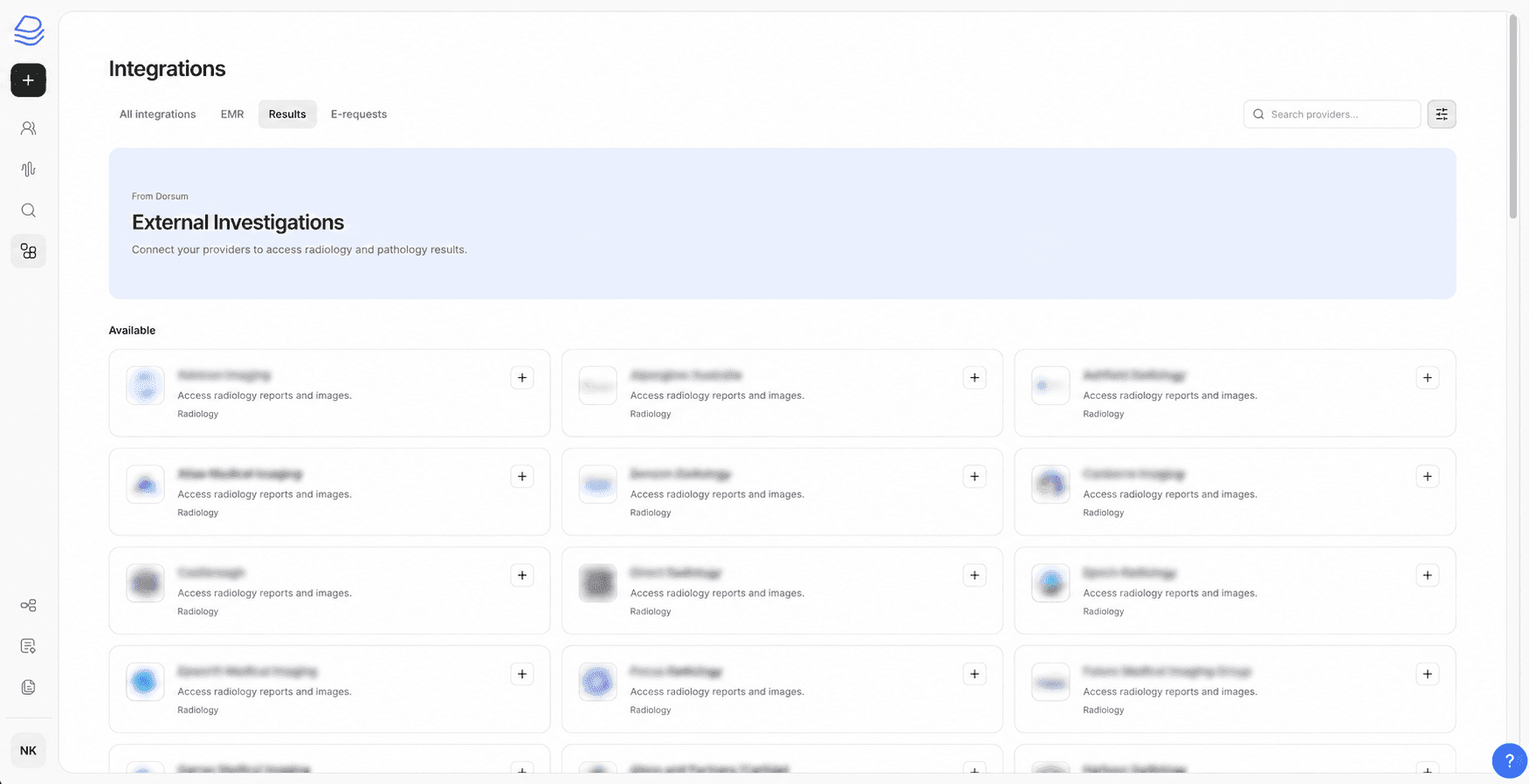
Open Integrations and select Results to find your providers. Each connection has its own setup instructions and uses your authorised access. Connect the providers you need for your practice.
Once connected, available investigations appear under the patient. Access depends on the provider and your permissions.
Read the report and open the images
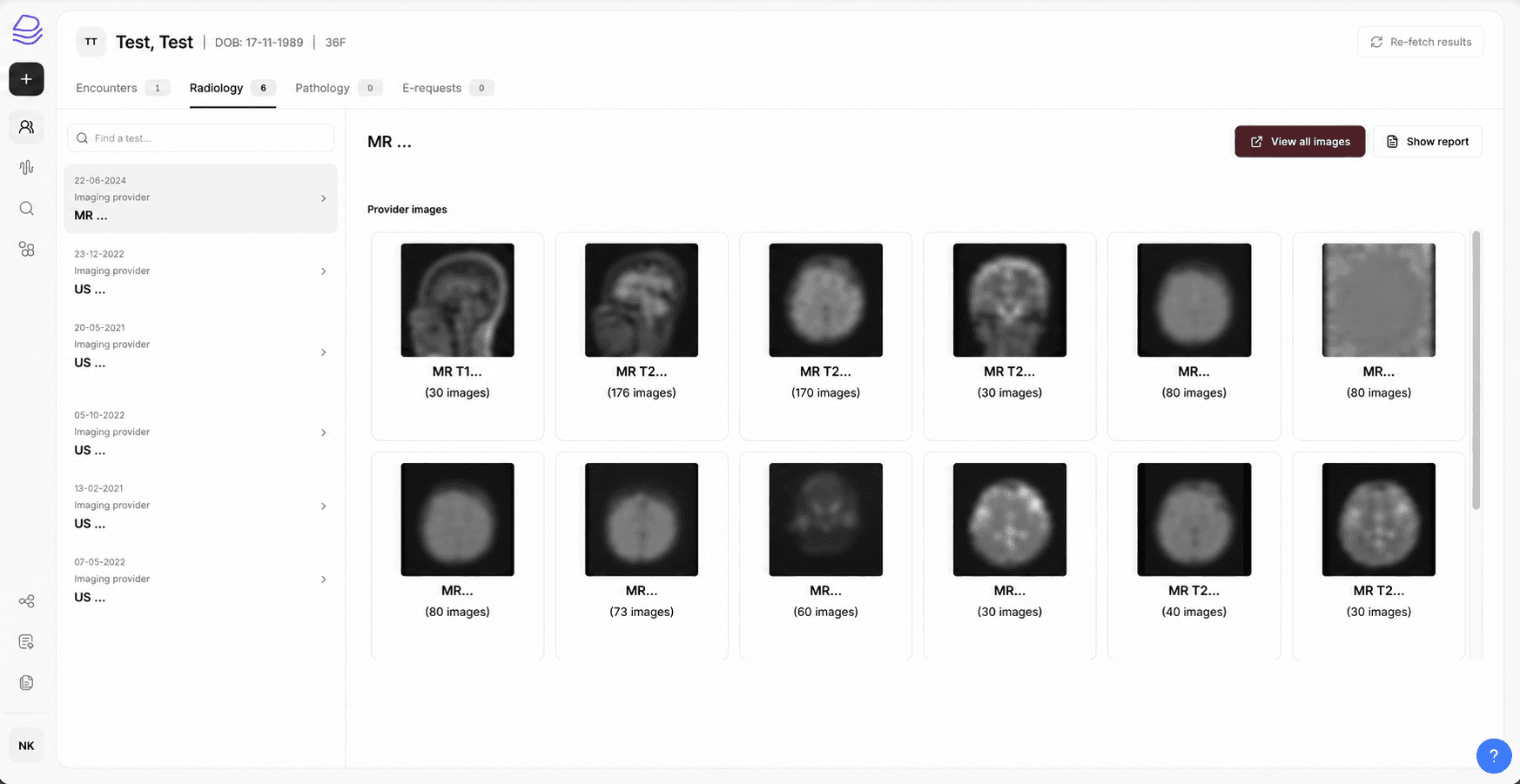
Select an investigation in the Radiology tab to see its report and available image previews. Use View all images to open the provider’s full viewer directly from that result.
The report and images remain linked to the same study. You can move between results in the list without starting a separate consultation.
Pathology is available alongside radiology
The Pathology tab brings together available pathology results. Where supplied, you can review test groups, values, units, reference ranges and flags.
For most clinicians, initial access covers results they have ordered. Access to other pathology results requires additional steps with the provider. Contact support@dorsum.ai for help with the setup that applies to you.
How Dorsum Connect fits in
For results workflows that use Dorsum Connect, the desktop app retrieves and displays reports on your computer without uploading them to Dorsum’s servers. Keep Connect running and signed in while you use those connections.
If you choose to add report text to a consultation, that selected text becomes part of the consultation. Simply viewing a report is a separate action.
Use the findings in your documentation
When preparing a consultation, add the report text or findings you want included in Context. Generate the note or letter, then review how the investigation is described alongside your assessment and plan.
If an expected result is missing, check the patient details, provider connection and access permissions. The setup guide below covers the connection steps and common checks.