Summary
External investigations are configured separately from the standard consultation workflow. Before starting, identify the results providers your practice uses and make sure you have the required access.
Connect your results providers
Open Integrations in Dorsum and select Results. Choose a provider and follow its connection instructions. Complete the setup for each provider you need.
Use your authorised provider account. If you are unsure which connection or permissions are needed, ask your practice administrator or contact support@dorsum.ai.
Check which results you can access
The result list depends on the provider connection and your permissions. For most clinicians, initial pathology access covers results they ordered. Access to other pathology results requires additional provider setup.
Before using the connection in clinic, check a result you already expect to be available. If it is missing, confirm the patient details and provider access rather than assuming there are no investigations.
Open Dorsum Connect if required
For a workflow that uses Dorsum Connect, follow the desktop setup instructions offered in Dorsum. Keep the app running and signed in while retrieving results.
Connect retrieves and displays reports on your computer without uploading them to Dorsum’s servers. If the browser cannot reach it, check that Connect is open and local network access is allowed.
Find and review a result
Open the patient
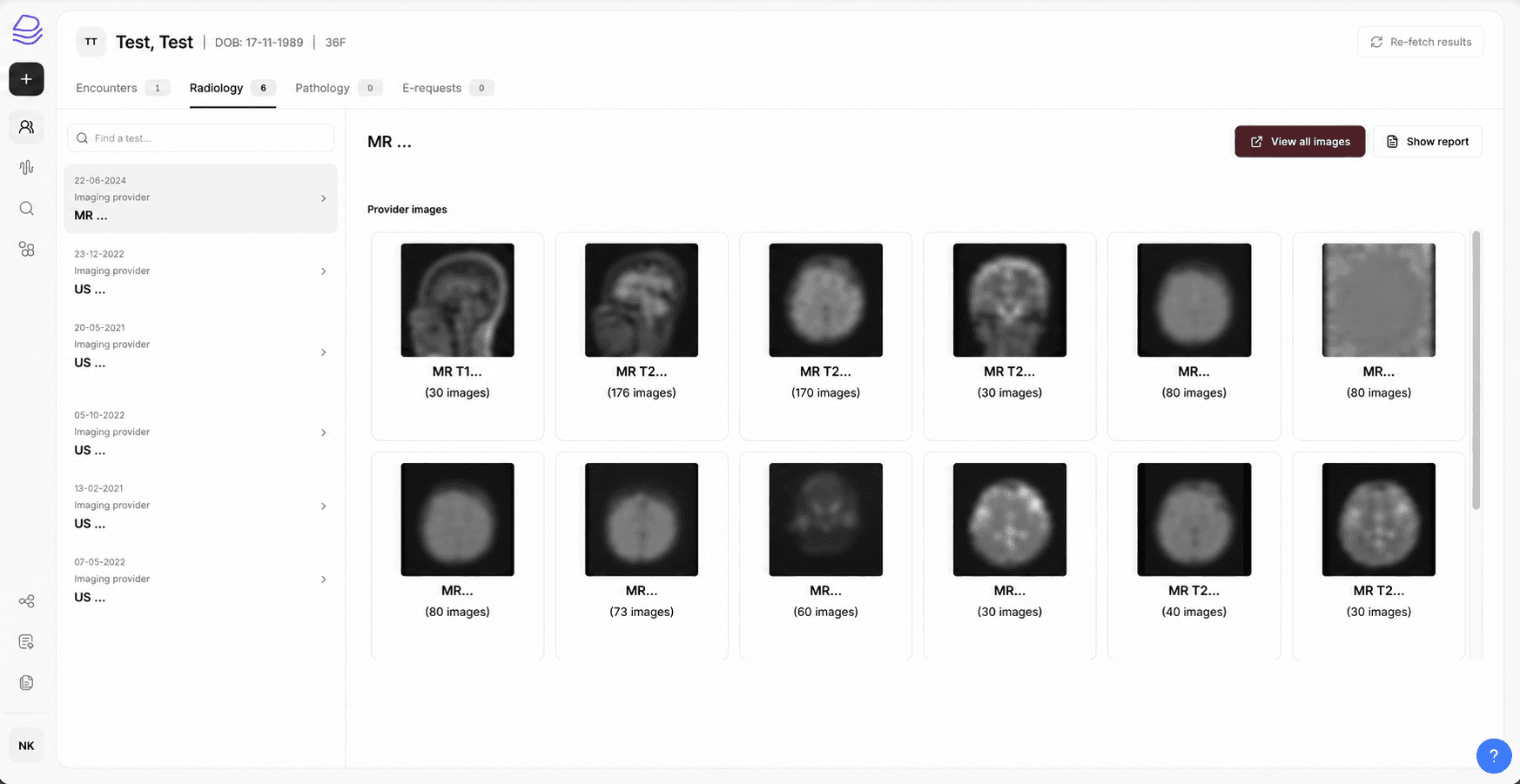
Check the patient details and open the Radiology or Pathology tab. You do not need to start a consultation just to review results.
Select the investigation
Check the test and date, then read the report. Where supplied, use the image previews or open the provider’s full image viewer.
Add relevant information when needed
If you want findings used in a consultation, add the selected report text or relevant findings to its context. That information then becomes part of the consultation.
If a result is unavailable
Check the patient details, connected provider and access permissions. For a Connect workflow, also check that the desktop app is running and signed in.
If you still cannot retrieve the expected result, contact support@dorsum.ai with the provider, time and step that failed. Remove patient identifiers from screenshots and do not include provider passwords or connection keys.