Summary
The Gentu integration uses a Chrome extension to connect your appointment list with Dorsum. Record and review the consultation in Dorsum, then return the letter to the patient in Gentu for the final save.
Bring across today’s appointments
Keep Gentu signed in using the same Chrome profile as the Dorsum extension. In Consultations, select Sync Gentu and choose today or the week. Open the patient’s appointment to begin.
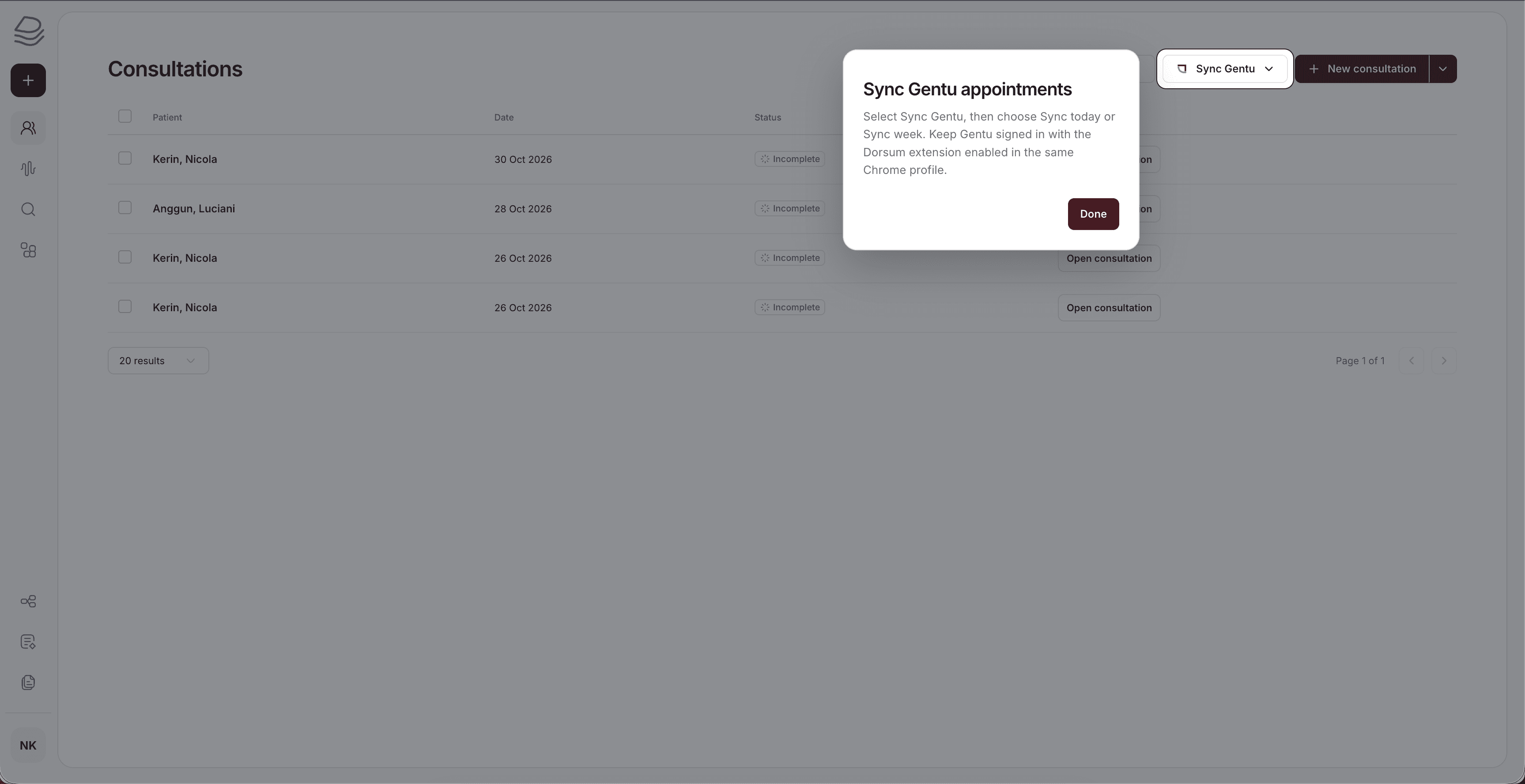
Prepare the documents you need
Choose your usual templates for the visit, add relevant background and record the consultation. Dorsum prepares a draft for you to review. You can edit the wording and clinical details before anything is saved to Gentu.
Set up different templates for initial and follow-up appointments, or request changes from the team if the structure does not suit the way you write.
Complete the letter in Gentu
Select Save to Gentu beside the reviewed letter. The extension opens the patient in Gentu with the letter ready for you to check. Complete the save there, then finalise the Dorsum consultation.
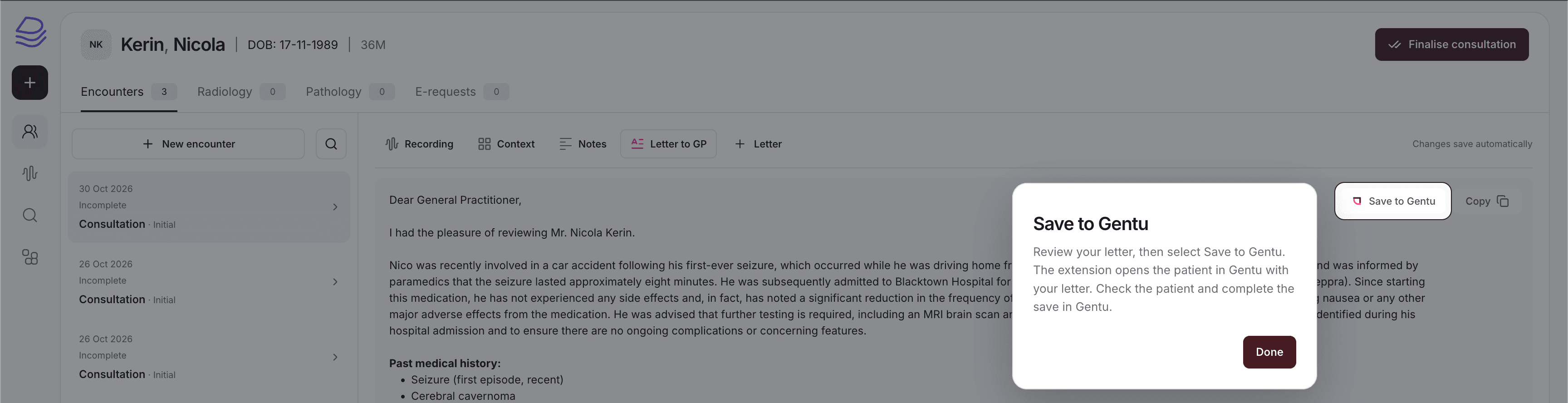
Get started with Gentu
Use the setup and use guide for the connection steps, a first consultation walkthrough and common fixes. If you need a hand with the setup or your templates, contact support@dorsum.ai.