Summary
Dorsum runs in your browser. Sign in with your account, connect a working microphone and allow microphone access when prompted. If your practice software is already connected, open Dorsum through that integration.
For your first run, use a test patient and a short recording. Work through the steps below before using the setup in clinic.
Find your way around
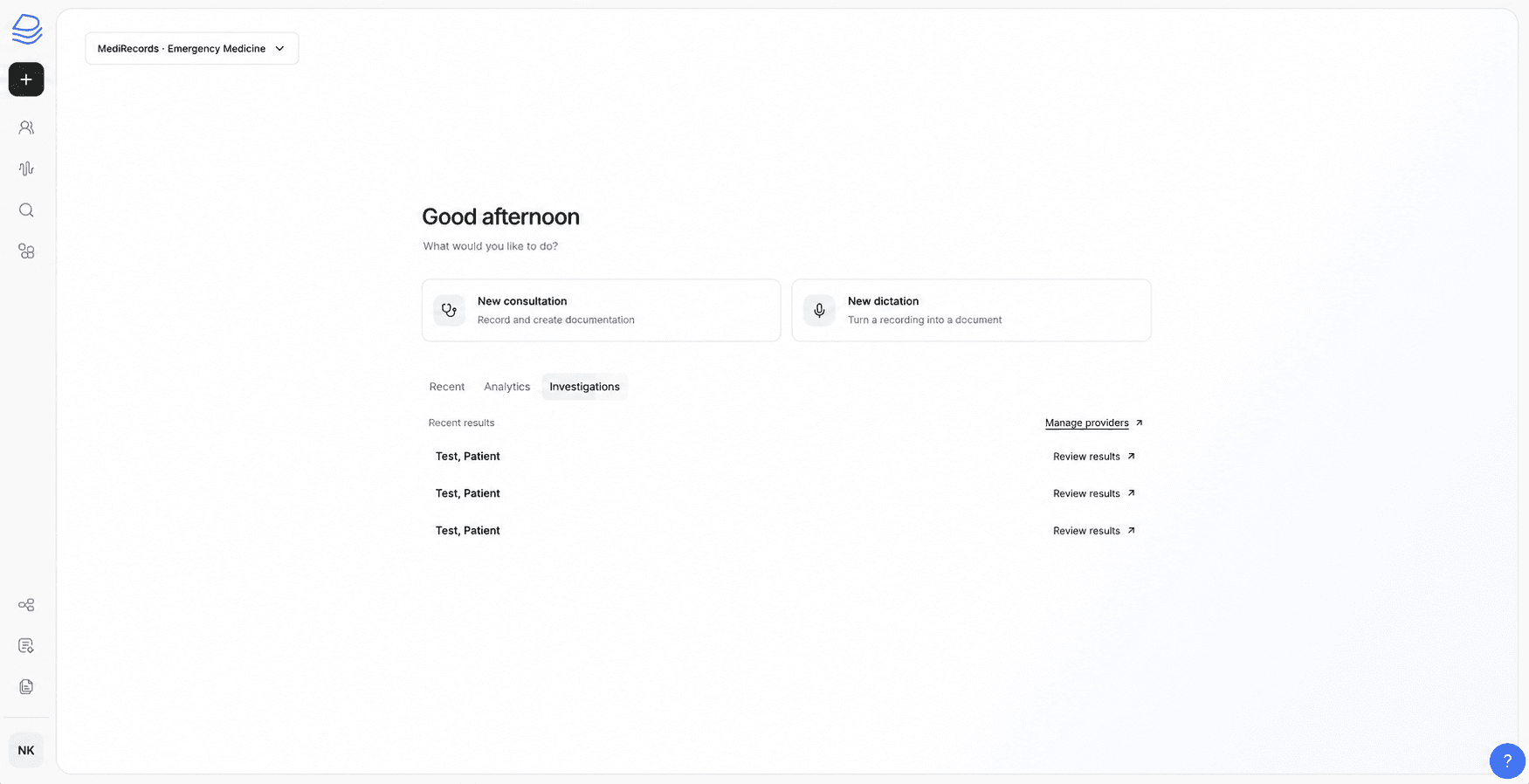
Use + to start a consultation or dictation. Open Consultations for appointments and work in progress, or Dictations for documents prepared from a dictation. Open a patient to see their consultations and dictations in one timeline.
Integrations is where you connect practice software and results providers. Templates controls document structure and wording, while Workflows sets the documents you usually prepare.
Prepare the consultation
Open the right patient
Choose New consultation and add or select the patient. If you opened Dorsum from practice software, check the patient and appointment details carried across.
Choose your documents
Select the workflow and templates you want to use. Your workflow supplies the usual documents and settings for this type of consultation.
Add relevant context
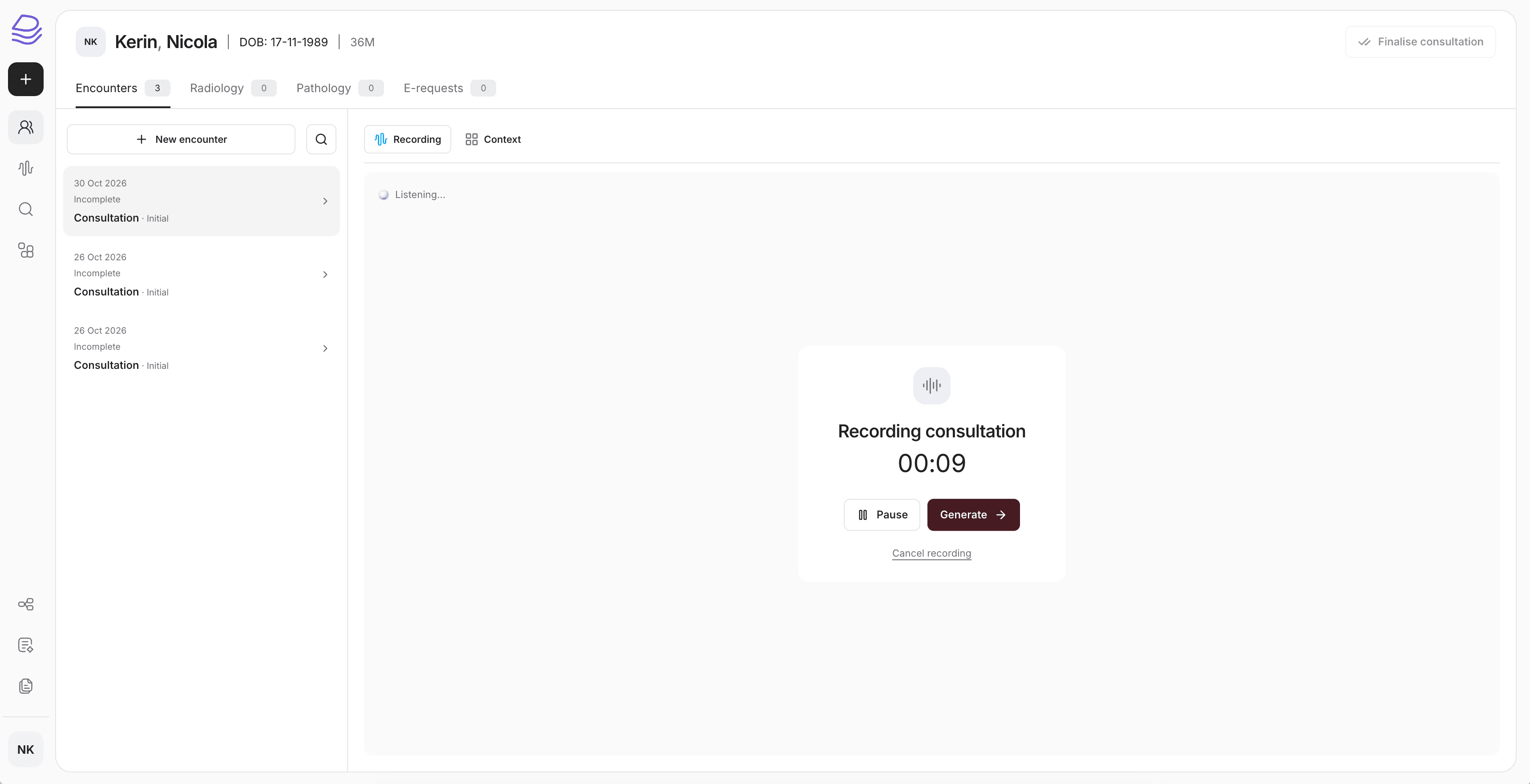
Use Context to add history, files or findings you want included. If investigations are connected, review the available results and select the information relevant to this consultation.
Record and generate
Select Start recording when you are ready. Pause if needed, then select Generate to prepare your documents. You can visit other parts of Dorsum and return to the active consultation.
Using dictation instead
Choose New dictation if you want to dictate a document rather than record a consultation. Record what you want to include, generate the document and return to it from Dictations to review or edit it.
Review and finalise
Read each draft
Open Notes and Letters. Check the patient details, clinical content, medicines and plan, and make any changes you need.
Check the final actions
Select Finalise consultation. Review the chosen documents, letterhead and any saving or delivery options. Include only the items you intend to save or send.
Confirm the result
Read the result of each action. If you saved to practice software, open the patient record and check that the note or letter arrived.
Use results and request forms
The patient’s Radiology and Pathology tabs show available results from your connected providers. You can read a report, browse image previews and open the provider’s image viewer. Pathology access usually starts with results you ordered; broader access needs additional provider setup.
In Streamline documents, choose the radiology and pathology forms your practice uses and check your referrer details. Review a completed request before downloading it or using an available electronic sending option.
Make the next consultation easier
Set your usual documents in Workflows, including separate choices for initial and follow-up visits. In Templates, start with the closest available template and adjust the options to match the way you write.
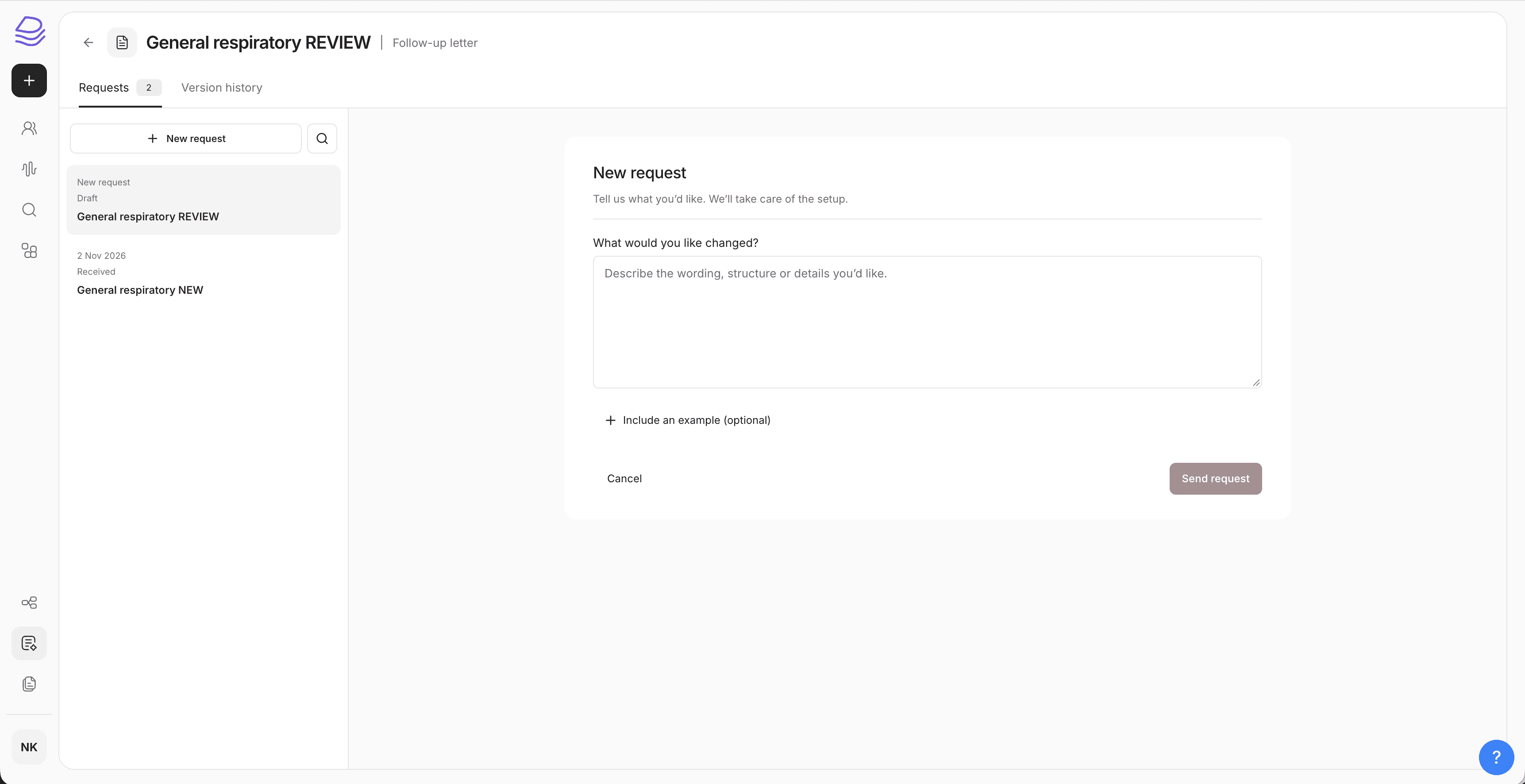
If you need a new template or a change, send a request in Dorsum with an example. You can follow the request from the same place.
Get help
Select ? to open Messages, Guides and Updates, or email support@dorsum.ai. Tell us which step you are on and what you see on screen. For recording or device problems, use the setup guide below.