Summary
Launch Dorsum from MediRecords for each patient so the appointment details carry across. If the practice is not connected yet, complete the setup guide first.
Open and check the appointment
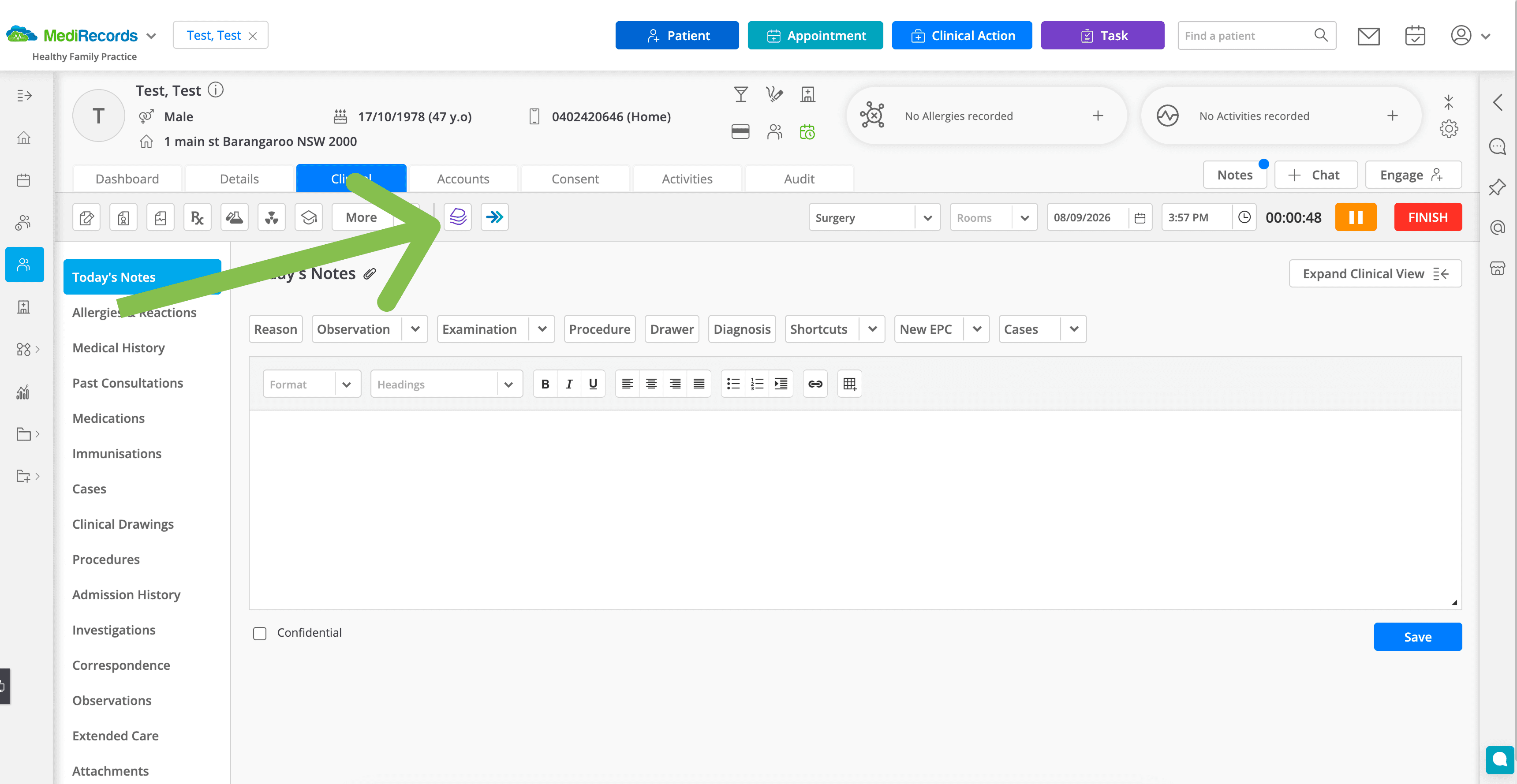
Open the patient’s appointment in MediRecords, select the Clinical tab and choose Dorsum. Sign in if prompted. Check the patient’s name, date of birth, clinician and practice before starting.
Prepare the consultation
Choose your workflow and templates. In Context, add the history, files and findings you want used in the documents. Patient details carry across from MediRecords; add any other information the consultation needs.
Where external investigations are configured, review available results in the Radiology and Pathology tabs. Select the findings relevant to the consultation. Pathology access usually begins with results you ordered; broader access needs additional provider setup.
Record, generate and review
Select Start recording. Pause if needed, then select Generate when you are ready to prepare the documents. You can visit other parts of Dorsum and return to the active consultation.
Open Notes and Letters to review each draft. Correct the wording and clinical content, check the patient details and plan, and choose the letter you want saved if you have prepared more than one.
Save to MediRecords
Open finalisation
Select Finalise consultation, then Save to MediRecords.
Check the selection
Review the selected notes and letter, the letterhead and any other enabled actions. Confirm when everything is ready.
Read each result
Check which actions succeeded. If an item failed, check what has already arrived before retrying it.
Check the patient record
Confirm the documents in MediRecords before moving to the next patient. Saving and sending are separate: a stored letter still needs the intended delivery action.
| Document | Where to find it |
|---|---|
| Notes | The MediRecords consultation note. |
| Letters | Correspondence Out, as separate PDF documents. This does not automatically email or fax the letter. |
| Other documents and reports | The destination enabled for your practice. This can include Correspondence In or Inbox; check the MediRecords Configure settings in Dorsum. |
Continue with the next patient
Return to the appointment list and launch Dorsum from the next patient’s appointment. If the details do not match, stop and reopen from the correct appointment before recording or saving.
If you cannot tell whether a document saved, check the record or contact support@dorsum.ai before creating another copy.