Summary
This guide covers the standard Xestro workflow. Start with a test patient and a short recording so you can check the connection and document destination before using it in clinic.
Before you start
- Google Chrome with access to Xestro and your Dorsum account.
- The Dorsum extension for Xestro installed in the Chrome profile you use for both applications.
- Xestro open and signed in when syncing your appointments.
Connect Xestro
Install the extension
Use the Xestro extension link below. Install it in the Chrome profile you use for Xestro and Dorsum.
Sign in to Xestro
Open Xestro and keep it signed in in that same Chrome profile.
Test the connection
In Dorsum, open Integrations → Xestro and select Test connection. Check that it succeeds before starting a consultation.
Open a consultation
Keep Xestro open
Sign in to Xestro in Chrome with the Dorsum extension enabled in that profile.
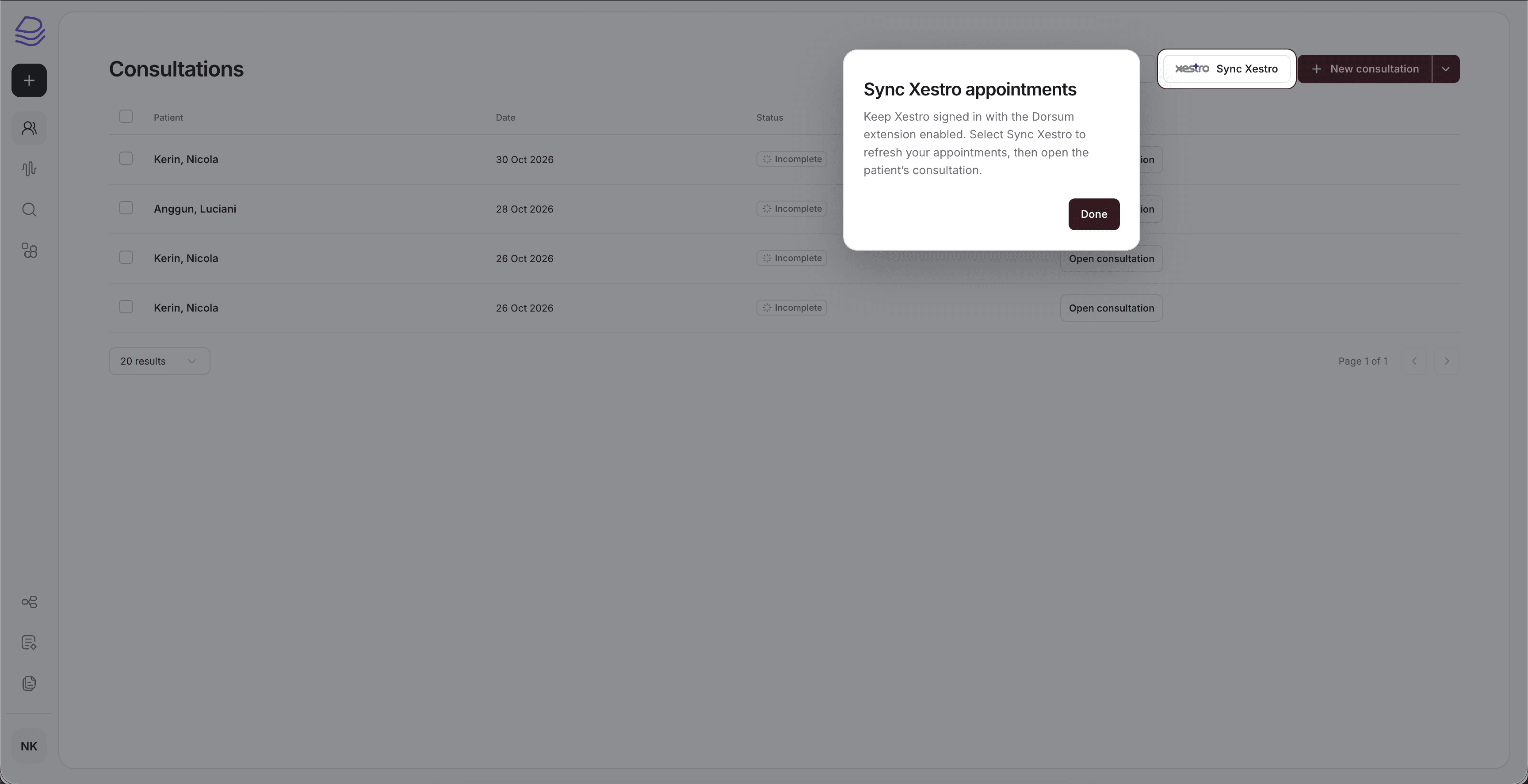
Refresh and open an appointment
In Dorsum, open Consultations and select Sync Xestro. Open the patient’s appointment and check their details.
Record and review
Check your templates
Choose the workflow and templates for this visit. Add any relevant history, files or findings in Context before generating your documents.
Record the consultation
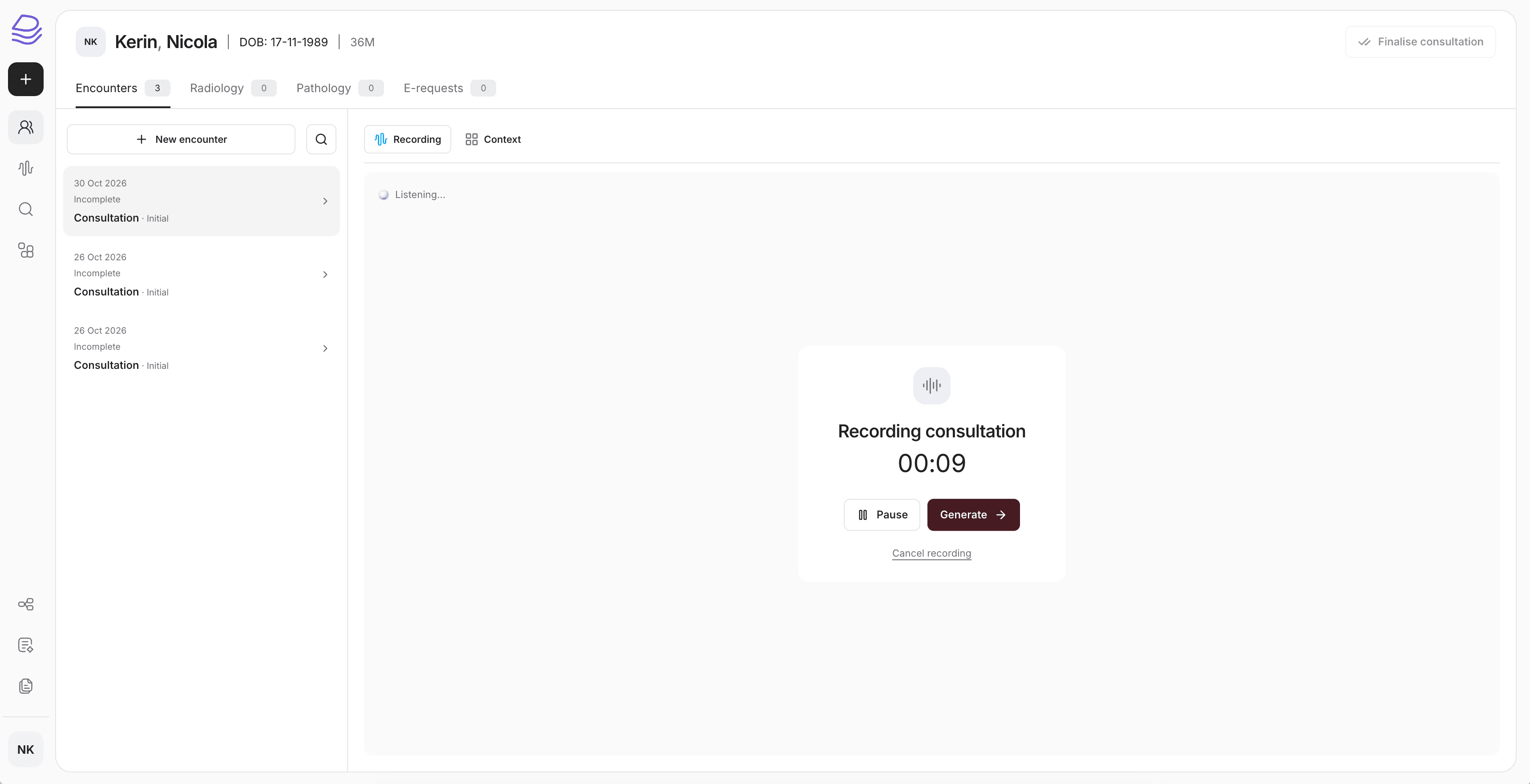
Follow your usual patient consent process, then select Record consultation. Allow microphone access if asked and check that the recording is picking up sound.
Generate and edit
When you finish recording, select Generate. Read the notes and letter, check the clinical details and make any changes before saving.
Copy and save in Xestro
Copy the reviewed document
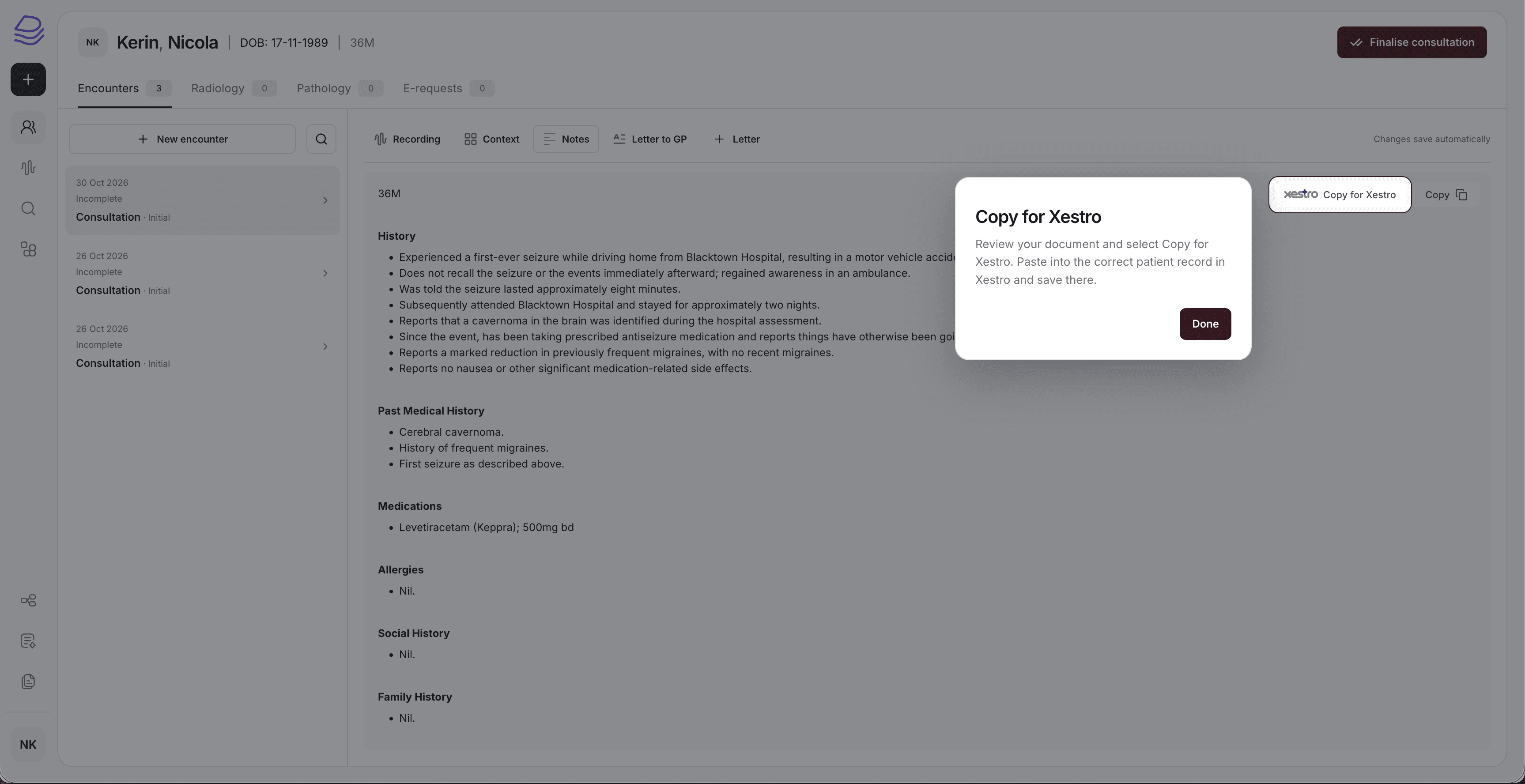
Read and edit the notes or letter, then select Copy for Xestro.
Paste into the patient record
Open the correct patient record in Xestro and paste the document into the intended notes or letter area. Check the content and formatting.
Save in Xestro
Save the document in Xestro. Once it is in the record, finalise the consultation in Dorsum.
Check the first saved consultation
Open the test patient in Xestro. Confirm that the document belongs to the right person and contains your final edits. Use the destinations below to check the result.
| Document | Where to check |
|---|---|
| Reviewed notes or letter | The Xestro record where you paste and save the formatted content. |
Questions and fixes
For help, use ? in Dorsum or email support@dorsum.ai. Include the step that failed and any error message. If you send a screenshot, hide patient details and any access tokens or keys.
| If this happens | What to check |
|---|---|
| The connection test fails | Check that Xestro is signed in and the extension is enabled in the same Chrome profile as Dorsum. |
| Appointments are out of date | Check the Xestro calendar, then select Sync Xestro again in Dorsum. |
| The document is not in the record | Copying does not save it. Open the correct Xestro record, paste the document and complete the save there. |